Cylinder labeling
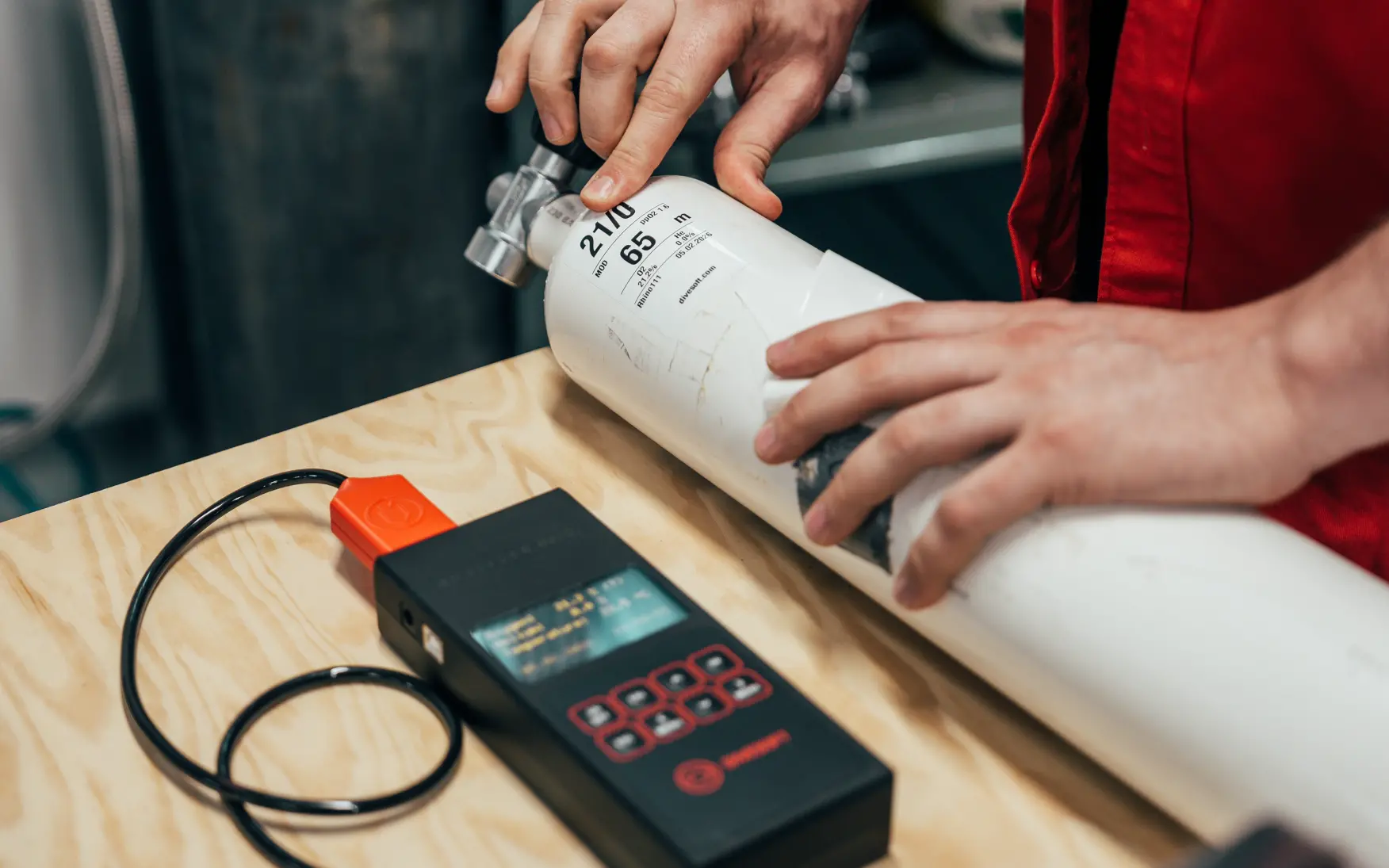
As technical divers, we all know the critical importance of properly labeled gas cylinders. A clear, accurate label isn't just good practice—it's a matter of safety. That's why we're excited to introduce Divesoft Label Print, a comprehensive solution that brings professional gas labeling directly to your fingertips.
Why Label Printing Matters
Every cylinder in your diving arsenal deserves a proper label showing exactly what's inside. With Divesoft Label Print, you can now print professional-quality gas mixture labels directly from your He/O2 analyzer or DNA analyzer, ensuring every cylinder in your rig is properly identified before you hit the water.
Getting Started: Printer Setup
Supported Printers
Divesoft Label Print works with any ZEBRA manufacturer label printer that uses the ZPLII protocol—essentially all Zebra printers manufactured after 1990. We've thoroughly tested the system with the Zebra ZD421t, a Thermal Transfer printer with 12 dots/300 DPI resolution, and it performs flawlessly.
He/O2 cable note
None of the ZD421 printers below contains the RS232 module. That needs to be bought separately, see chapter below "The Cable Connection",
- ZD4A042-30EM00EZ - 203DPI, Bluetooth only
ZD4A043-30EE00EZ - 300DPI, Bluetooth + Ethernet
Labels and Ribbons
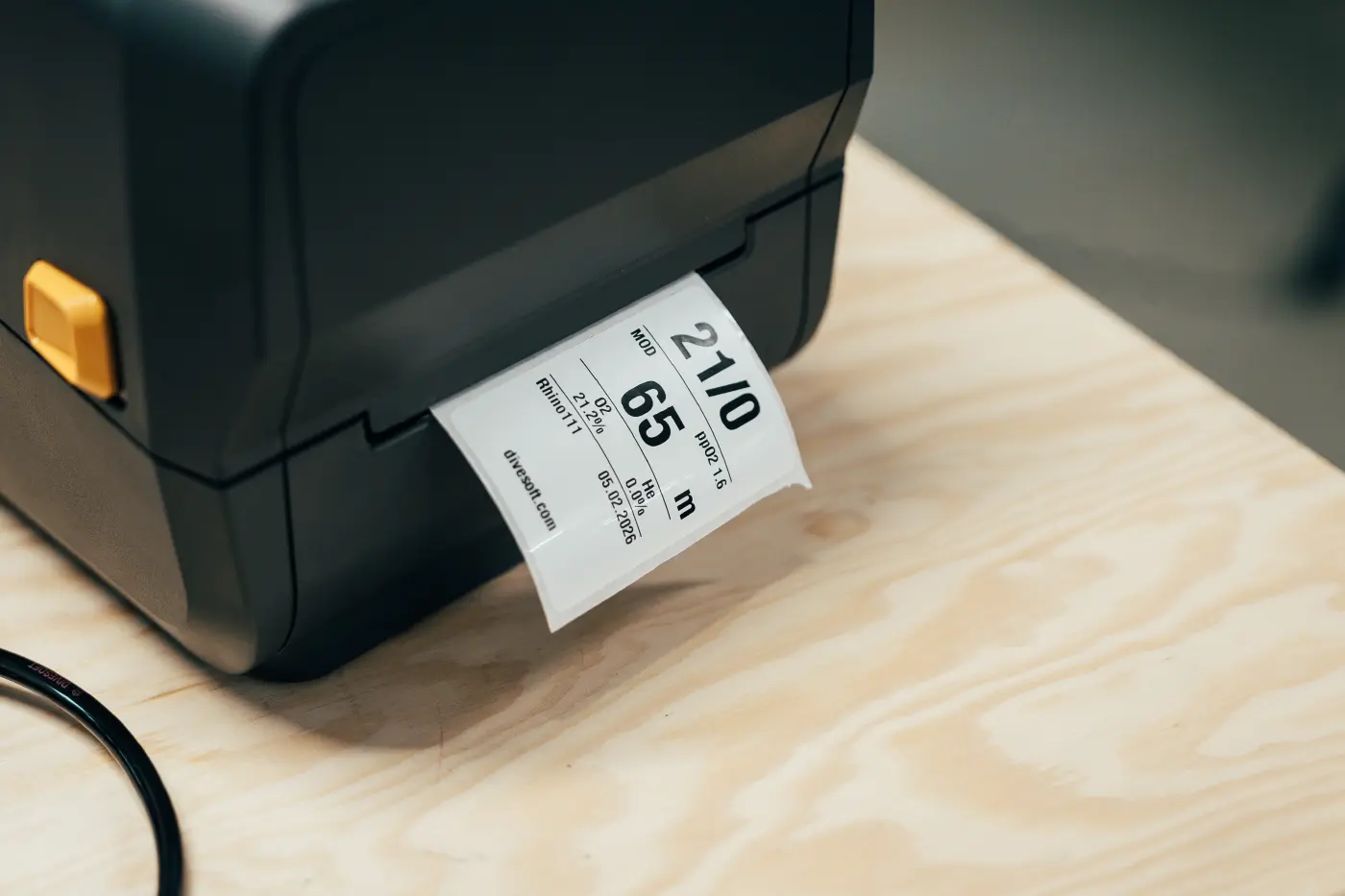
Our labels are designed specifically for technical diving applications, sized at 50×70mm (2×2.75 inches) with a 2:3 aspect ratio. We've tested and recommend:
- Labels: Zebra Z-Ultimate 3000T White
- Europe: 880255-050D
- United States: 10011703
- Ribbon: Zebra 5095 resin ribbon (80mm wide)
- Worldwide: 05095GS08407
These materials are durable, water-resistant, and hold up well to the rigors of technical diving.
Printing from Your He/O2 Analyzer
Direct Connection Setup
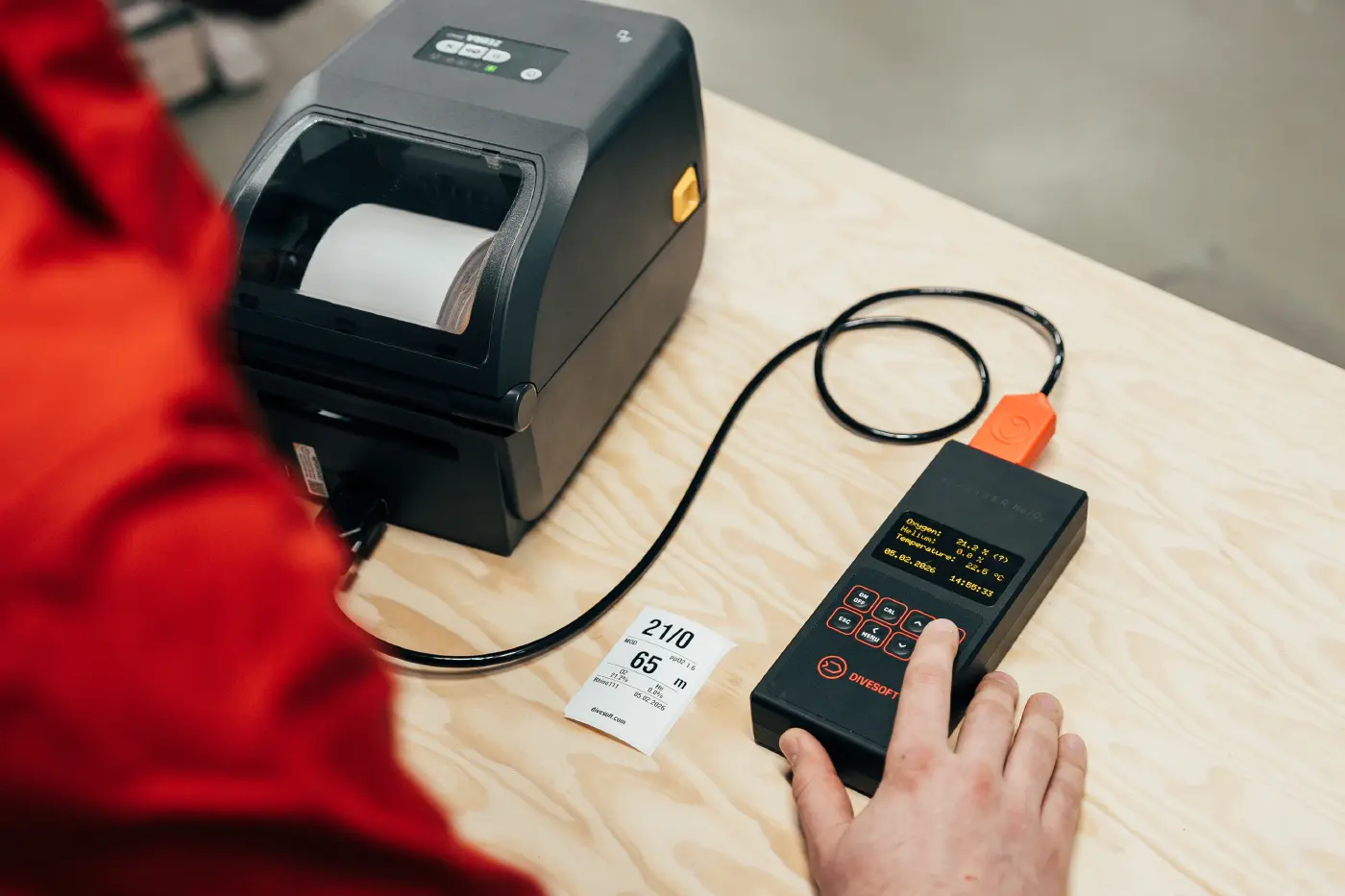
Connecting your He/O2 analyzer to a label printer is straightforward:
- Use the Divesoft Analyzer-RS232 cable to connect your He/O2 to your supported label printer
- Enable Printer mode in the analyzer menu
- When analyzing your mix, simply press the OK button—the analyzer will freeze the measurement as usual and automatically print one label
Notes
- Label printing is supported in He/O2 firmware 3.42.0 or newer.
- The cable #7312 is not compatible with SOLO.
- With Printer mode enabled, data output is redirected to the external DVI connector only. USB output will be disabled during printer operations.
Printer Menu Configuration
The Printer submenu offers several customization options:
Printer Mode
- ON: Pressing OK during measurement stops the measurement and prints a label
- OFF: Normal mode with continuous data stream output (see user manual)
Diver Name: Personalize your labels with your name (up to 8 characters)
Label Dimensions: Set your label width and height to match your consumables. Incorrect settings may cause values to print over each other. We recommend maintaining the 2:3 aspect ratio for best results.
Resolution: Configure your printer's resolution for proper content scaling. Most common settings include:
- 203 DPI (8 dots)
- 300 DPI (12 dots)
- 600 DPI (24 dots)
The Cable Connection
The Analyzer-RS232 cable connects your label printer's RS-232 interface to the auxiliary attachment connector on the He/O2 analyzer. If your Zebra printer doesn't have an RS-232 interface, don't worry—Zebra printers are modular, and you can install an RS-232 interface yourself without any tools.
For ZD421 models, you'll need the module available at: https://www.zpsstore.com/p1112640-016-zebra-printer-part
For older models, search for "Zebra serial module."
The cable will be available on the Divesoft e-shop in early Q2/2026. You can set up a notification using the "Watch availability" button.
And if you're technically inclined, the cable design is straightforward enough to DIY—schematics are available right here [PDF].
Divesoft Eshop: Printer Cable, click me !
Printing from DNA with the Divesoft App
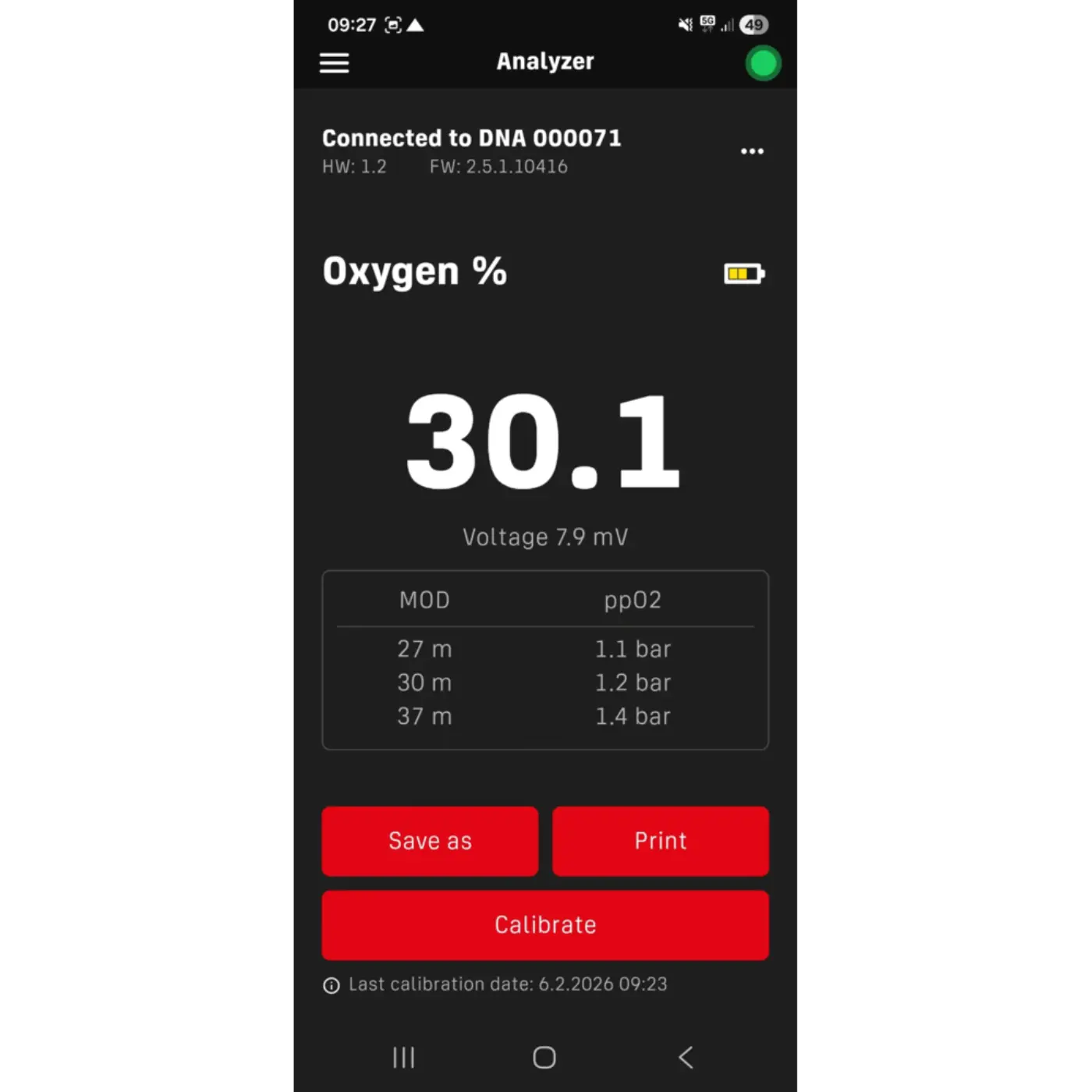
Did you know you can print labels directly from your DNA analyzer using the Divesoft App? Here's how:
Android Setup
- Navigate to the Google Play Store and install the Zebra Print App
- Open the Zebra Print App and connect your printer following the app instructions (we've tested with both WiFi and LAN interfaces)
- Configure your printer label size:
- Check "Fit To Page"
- Set Rotation to 0 degrees
- Keep "Orientation Normal"
- Print a test label to verify your connection
Printing Your Labels
- Open the Divesoft App
- Enter the Analyzer section and connect your DNA
- Analyze your cylinder mixture
- Tap the Print button, select your printer in the system dialog, and confirm
Pro tip: If your print appears rotated by 90 degrees, check that the Orientation is set to "Portrait" in the final print dialog.
Now you're ready to label all your cylinders properly!
Web App: Print Anytime, Anywhere
But wait, there's more! What if you need to replace a damaged label or reprint labels for previously analyzed mixtures? That's where our Web App comes in.
The Web App connects directly to any Bluetooth-enabled Zebra printer via BLE (Bluetooth Low Energy). Since we're using some lightyear advanced technology here, you'll need a supported web browser—currently Chrome or Chromium-based browsers are supported.
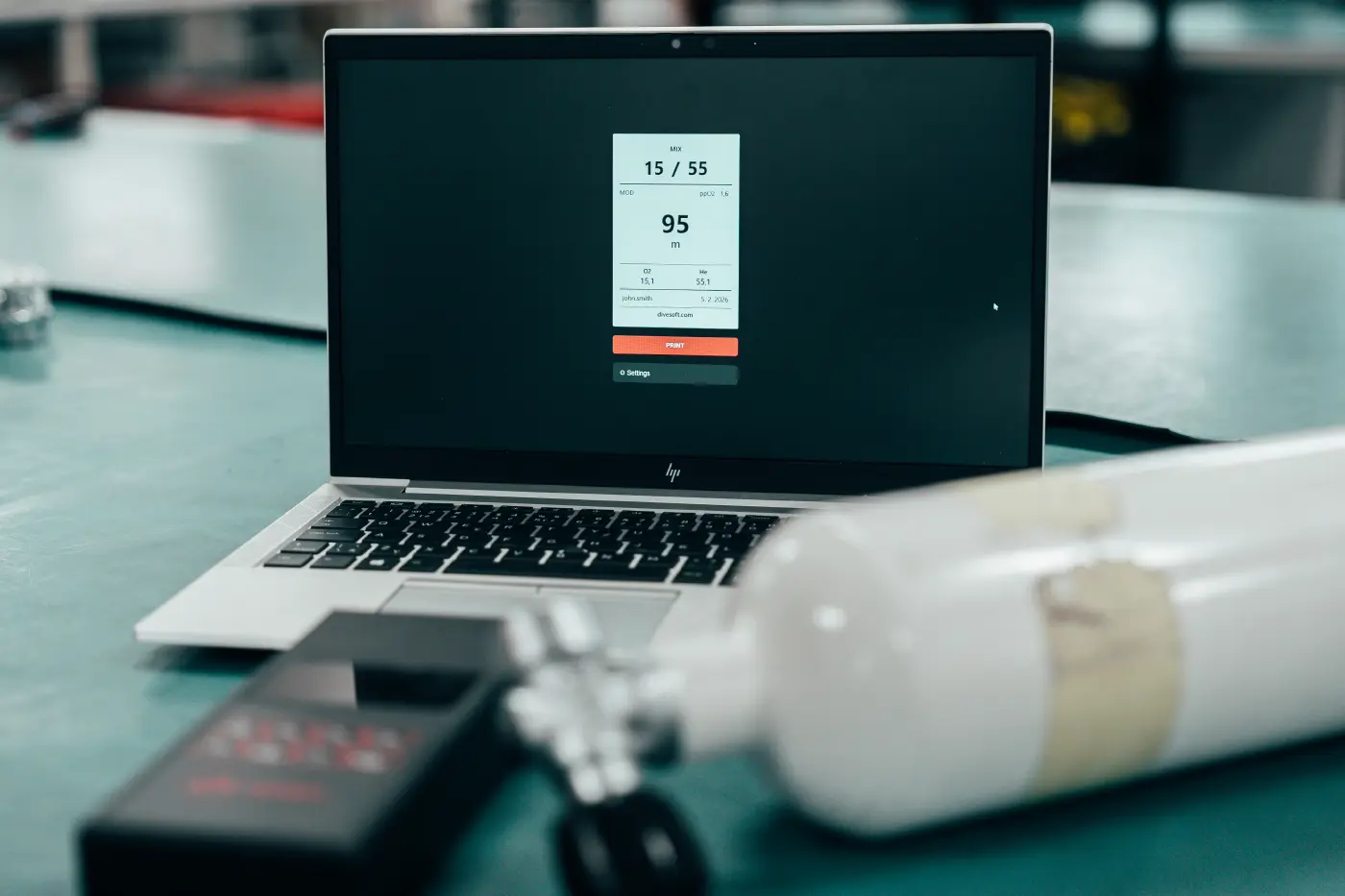
Print your cylinder labels at toolkit.divesoft.com !
Final Thoughts
Proper gas labeling isn't just about compliance—it's about safety, professionalism, and peace of mind. Whether you're printing directly from your He/O2 analyzer in the field, using your DNA with the Divesoft App on your phone, or reprinting labels via our Web App, Divesoft Label Print makes it easier than ever to keep your cylinders properly identified.
Stay safe, dive smart, and keep those cylinders labeled!